An alternative to Windows Clock for world time
Windows comes with a Clock app, and it’s good. I use it for alarms. Open World Clock does a different job: it keeps your cities on screen and answers “what time is it there?” without opening anything. Here’s a fair comparison, web converters included.
- Free
- Stays on top
- Works offline
- MIT licensed
Side by side
Swipe to see the other columns
| Feature | Open World Clock | Windows Clock | Web converters |
|---|---|---|---|
| Price | Free, MIT open source | Free, comes with Windows | Usually free; many show ads |
| Where it lives | On your desktop: strip, compact or vertical | An app window | A browser tab |
| Stays above other windows | Yes, if you pin it | No, it’s a regular window | No |
| Convert a time | Type it, or scroll the mouse wheel over a card | Compare, with a time slider | Yes, it’s the main job |
| Meeting planner with working hours per city | Yes, night shifts included | No | Some |
| Copy converted times as text | Yes | No | Some, often as a link |
| Works offline | Yes | Yes | Most need a connection |
| Alarms, timers, stopwatch | No | Yes, plus focus sessions | Rarely |
| Pin a city to Start | No | Yes | No |
| Runs on | Windows 10 and 11 | Windows 10 and 11 | Any device with a browser |
Based on the Clock app in Windows 11. Web converters vary from site to site.
What the Windows Clock app does well
It’s already installed, it’s free, and it does more than tell the time: alarms, timers, a stopwatch and focus sessions. Its World clock tab shows your cities on a map, Compare lets you drag a slider to see what time it will be elsewhere, and you can pin a city to the Start menu.
If you only need one or two other time zones, Windows can also add up to two extra clocks to the taskbar, and they appear when you hover over or click the clock in the taskbar. Where that setting lives has moved between updates, so I wrote down how to show multiple time zones in Windows 11 and 10, step by step.
What web converters do well
Nothing to install, they work on any device, and you can send someone a link. The big ones know thousands of places and let you look up any date, past or future. The trade-offs: a tab and a connection every time, many carry ads, and they don’t stay on your desktop.
Where Open World Clock fits
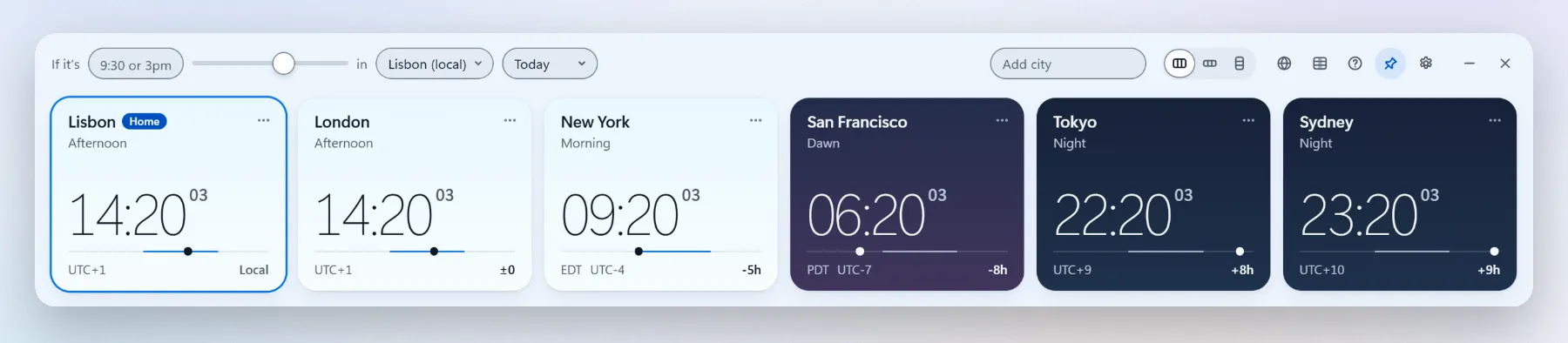
Always in view
A small strip, compact bar or vertical column that can stay above every window.
Who’s awake, at a glance
Each card follows its city’s real sunrise and sunset, and cities between 22:00 and 07:00 get a moon while you convert.
Convert without typing
Scroll over any card to move every clock in 15-minute steps, or type 3pm in any city.
Meetings
A planner with working hours and days per city, night shifts included, and the overlap outlined.
Private
No account, no ads, no telemetry, and it works offline.
Open source
MIT licensed, with the code on GitHub.
Which one should you use?
- Alarms, timers or focus sessions: the Windows Clock app.
- One or two extra time zones you check now and then: the taskbar’s additional clocks.
- A one-off conversion on your phone, or a link to share: a web converter.
- Several cities every day, and meetings across them: Open World Clock.
They don’t compete for anything, so it’s normal to use two of them. I do.
Windows is a trademark of Microsoft. Open World Clock isn’t affiliated with Microsoft.
More about Open World Clock
Put the world on your desktop
Completely free for Windows 10 and 11. Open source, no account, no ads, no telemetry.